Chapter 5: The Visual Action Graph & Event Engine
The Visual Action Graph is where you bring your story to life with game logic, dialogues, puzzles, sound effects, and room transitions. Instead of writing code, you connect visual nodes together on an intuitive canvas.
In this chapter, you will learn how the Visual Graph Editor works, explore action triggers, master Commands vs. Conditions, and build reusable Global Functions.
5.1 Overview of the Visual Action Graph
When you edit an Action on a Room, Object, or Hotspot, clicking 🎨 Visual Graph Editor opens the full-screen node editor:
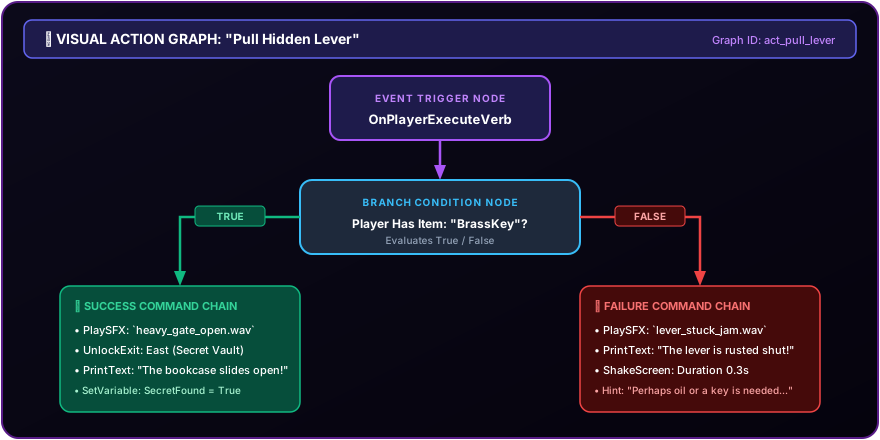
5.2 Understanding Action Triggers
Every action sequence begins with a Trigger Node. The trigger defines when the action executes:
| Action Trigger | How It Fires | Common Example Use Case |
|---|---|---|
UserClicked |
Player selects a text verb or clicks a hotspot button | Inspecting a bookshelf, clicking an "Attack" button |
OnPlayerEnter |
Fires automatically when the player enters a room | Stepping onto a trapdoor, triggering an entrance cutscene |
OnPlayerExit |
Fires automatically before the player leaves a room | A guard stopping the player from leaving without a pass |
OnGameStart |
Fires once when a new game starts | Giving the player starting gold and initial items |
OnGameLoad |
Fires immediately after loading a saved game session | Restoring custom UI states or resuming background audio |
OnTurnTick |
Fires on every turn tick | Poison damage ticks, hunger meter countdowns |
OnObjectTaken |
Fires when an item is picked up | Alarming guards when a cursed jewel is taken |
5.3 Commands vs. Conditions
Nodes in the Action Graph are divided into two main categories: Commands and Conditions.
1. Commands (State Mutators & Story Actions)
Commands perform sequential actions in your game world. When executed, control flows from one command node directly to the next:
- Set Variable / Modify Variable: Update numeric counters or story flags.
- Give Item / Take Item: Add or remove items from player inventory.
- Move Player: Transport the player to a destination room.
- Unlock Exit / Lock Exit: Open or lock compass directions.
- Play Sound / Play Music: Trigger audio effects or background tracks.
- Print Message / Show Dialog: Display story narrative or character speech.
- Show Interactive Screen / Close Screen: Open visual GUI panels or return to the room.
2. Conditions (Logic Evaluators & Branching)
Conditions evaluate your game state and split execution into two paths: True Branch and False Branch.
flowchart TD
    A["Trigger Node"] --> B{"Condition Node:<br/>Player Has Item 'BrassKey'?"}
    B -- True Branch --> C["Command: Unlock Exit East<br/>Command: Print Message 'You unlocked the door!'"]
    B -- False Branch --> D["Command: Print Message 'The door is locked tight. You need a key.'"]
5.4 Global Functions & Reusable Action Templates
If you have an action sequence that needs to be triggered from multiple places (e.g. Calculate Level Up, Game Over Reset, or Update Quest Log):
- Go to 🧩 Global Functions in the left sidebar.
- Click ➕ Add Function (e.g.
ResetPlayerStats). - Build the action graph once inside the Global Function.
- Anywhere else in your game, add an Execute Function command node selecting
ResetPlayerStats!