Chapter 3: Game Objects, Characters & Inventories
Game Objects and Characters bring your story world to life. Objects can be static scenery items, grabable inventory items, wearable equipment, or containers like chests and backpacks. Characters represent non-player characters (NPCs), companions, merchants, or enemies.
In this chapter, you will learn how to create and classify items, set up player inventories, manage equipment slots, create NPCs, and configure contextual interaction popovers.
3.1 Understanding Game Objects
In RagNext, any physical item or prop in your world is a GameObject. An object can exist in a room, inside a player's inventory, inside a chest, or equipped on a character.
flowchart TD
    A["GameObject Classifications"] --> B["1. Static Scenery<br/>(IsCollectible = False)"]
    A --> C["2. Grabable Item<br/>(IsCollectible = True)"]
    A --> D["3. Wearable Equipment<br/>(IsWearable = True)"]
    A --> E["4. Container<br/>(IsContainer = True)"]

    B --> B1["Monuments, Heavy Tables, Boulders"]
    C --> C1["Keys, Scrolls, Potions, Coins"]
    D --> D1["Helmets, Leather Armor, Magic Rings"]
    E --> E1["Chests, Safes, Backpacks, Drawers"]
3.2 Step-by-Step: Creating a Game Object
Let's create a new item in Studio:
Step 1: Open the Objects Workspace
- In the top toolbar or left navigation rail, click 🎒 Objects.
- Click ➕ Add Object at the bottom of the objects list.
Step 2: Configure Object Attributes
Select the new object to reveal its properties in the main workspace:
- Name: Enter an item name (e.g.
Rusty Brass Key). - Description: Type what the player sees when inspecting the item.
Example: "A heavy brass key tarnished with age. The bow is shaped like an oak leaf."
- Picture Asset: (Optional) Assign an item illustration sprite or thumbnail image.
3.3 Object Types & Behavior Flags
Toggle object behavior flags in the Object Inspector to define how players interact with the item:
1. Static Scenery (IsCollectible = False)
Uncheck Is Collectible.
- The item stays fixed in its room.
- Players can inspect or interact with it ("Examine Statue"), but cannot take it into their inventory.
2. Grabable Items (IsCollectible = True)
Check Is Collectible.
- Players can take the item into their inventory using the default "Take" verb.
- The item moves from the current room's object list into
Player.Inventory.
3. Wearable Equipment (IsWearable = True)
Check Is Wearable and specify a Wear Slot:
- Available slots:
Head,Chest,MainHand,OffHand,Ring,Feet. - When a player equips the item, RagNext Player automatically moves it to their equipment slot and updates character stats!
4. Container Objects (IsContainer = True)
Check Is Container.
- Allows the object to hold other game objects inside it (e.g. a
Treasure Chestcontaining aMagic Swordand50 Gold). - You can toggle Is Open or attach action steps to lock/unlock the container.
3.4 Creating NPCs & Characters
Characters represent living entities in your game world (allies, villains, shopkeepers, or monsters).
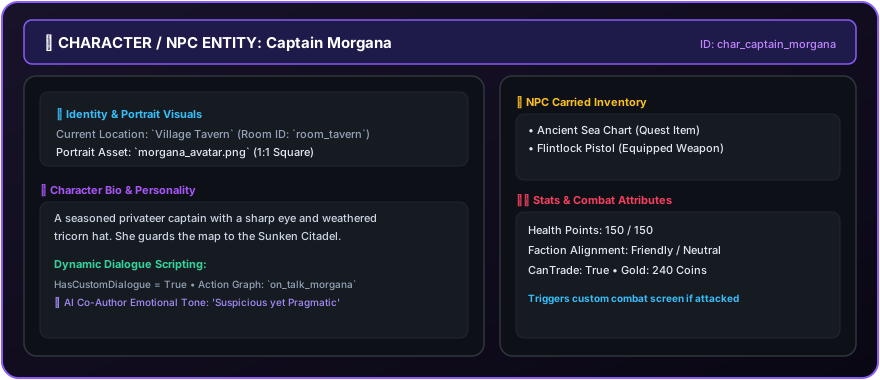
Step-by-Step: Adding an NPC
- In the left navigation, click 👤 Characters.
- Click ➕ Add Character.
- Set Name (e.g.
Captain Morgana). - Set Starting Location: Select the room where the character appears (e.g.
Pirate Cove Tavern). - Set Portrait Image: Assign a character headshot image asset.
- Write character descriptions and add character actions (e.g. "Talk to Captain Morgana").
3.5 Contextual Interaction Popovers in Player
In RagNextPlayer, when a player clicks an object or character in the room view or interactive screen, RagNext opens a Contextual Action Popover:
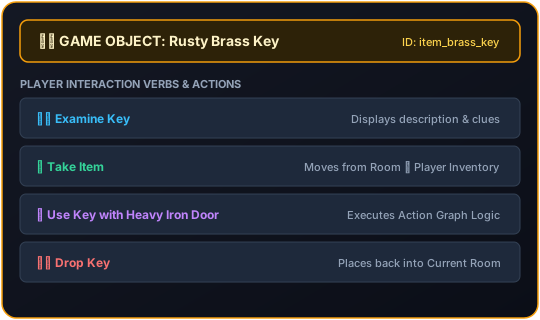
The popover dynamically displays only the active, enabled actions for that target, ensuring your players always have clear visual choices!