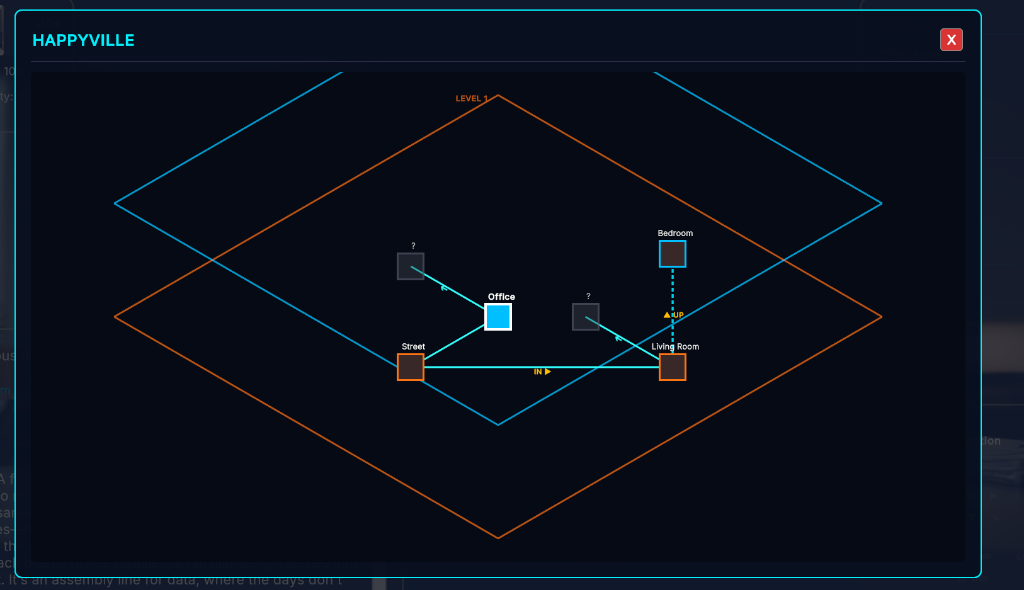
Rooms and Navigation
Rooms represent the scenes and locations in your game. Configuring exits and connections allows players to move around the world.
Room Properties
For each Room, you define:
- Name & Description: Displayed to the player upon entering the room.
- Portrait / Scene Image: Visual assets rendered in the player view.
- Exits: Links between rooms in specific directions.
Setting Up Exits
In the Room editor panel, you can assign target destinations for directional exits:
- Supported Directions: North, South, East, West, Up, Down, In, Out, and diagonals (NorthEast, NorthWest, SouthEast, SouthWest).
- To link two rooms: select a target room in the dropdown for the corresponding direction (e.g., setting the North exit of
Highway 9toThe Foggy Road).
Locking and Unlocking Exits
You can control access to exits at runtime using variables and actions:
1. Initial State
Under the room settings, check the lock checkbox next to a direction (e.g., locking North) to prevent the player from taking that path initially. If they try to go North, the runtime prints: "The exit to the North is locked."
2. Runtime Manipulation
Use script commands in the Visual Editor to modify exit accessibility:
- Room: Unlock Exit: Set the target room (using friendly name or GUID) and the direction (e.g.,
North). This sets the exit's locked flag tofalse. - Room: Lock Exit: Set the target room and direction. This sets the locked flag to
true. - Room: Set Exit: Add or change a connection entirely at runtime. Setting a destination to blank removes the exit completely.