Actions and Triggers
Actions are visual script graphs that drive the narrative logic, state mutations, and player choices in your game.
Action Structure
Every Action consists of an Action Start node connected to a series of command or condition nodes:
1. Dialogue Node
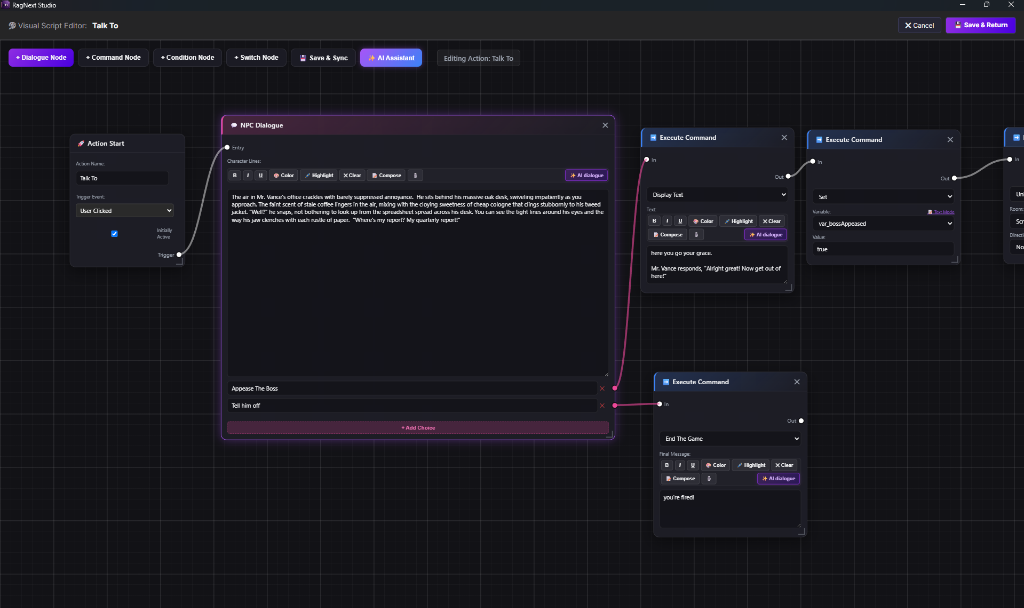
Renders text prompts or story narratives to the player. It can display static text, or evaluate dynamic inline variables wrapped in curly braces (e.g., Hello, {player.Name}!). It also supports interactive branching options (choices) that direct the flow down separate execution lines based on the player's choice.
2. Command Node
Performs state mutations and game actions. Key commands include:
- Variable: Set / Increment / Decrement: Mutate numeric, string, or boolean variables.
- Character: Move To Room: Updates NPC locations.
- Room: Lock / Unlock Exit: Toggle access to direction exits dynamically (e.g., locking "North" until a key is found).
- Media: Play Sound Effect / Video: Play audio clips or videos.
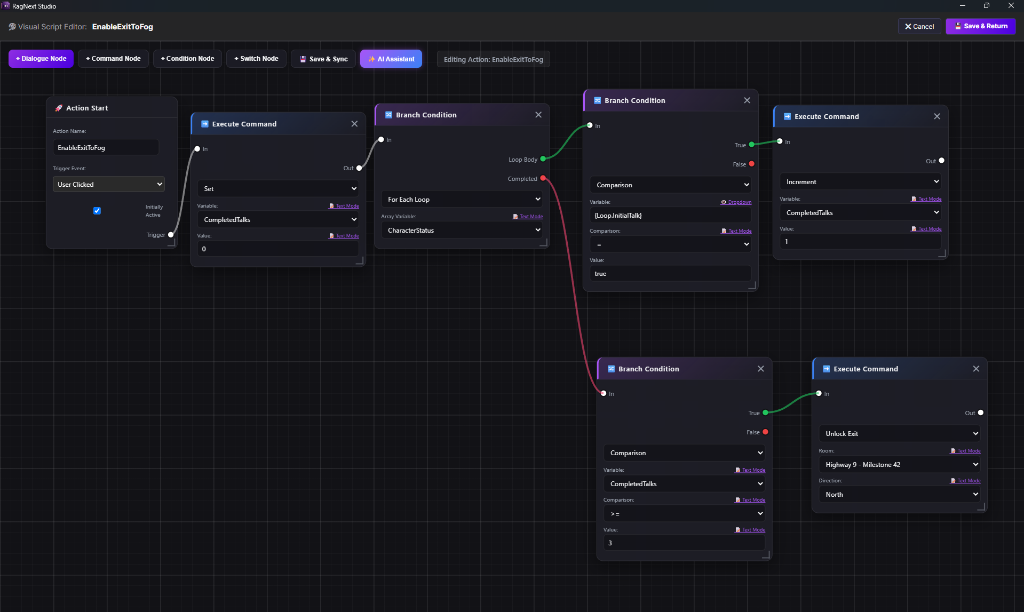
3. Condition Node
Branches the visual flow based on boolean statements or collections.
- Evaluates variables, gender, inventory holdings, or room locations.
- Sockets: Has a green True branch socket and a red False branch socket to route execution flow.
- Loops: Supports a For Each Loop operation to iterate over array variables. It directs execution through a Loop Body socket for each item in the collection and triggers a Completed socket once the iteration ends.
4. Switch Node
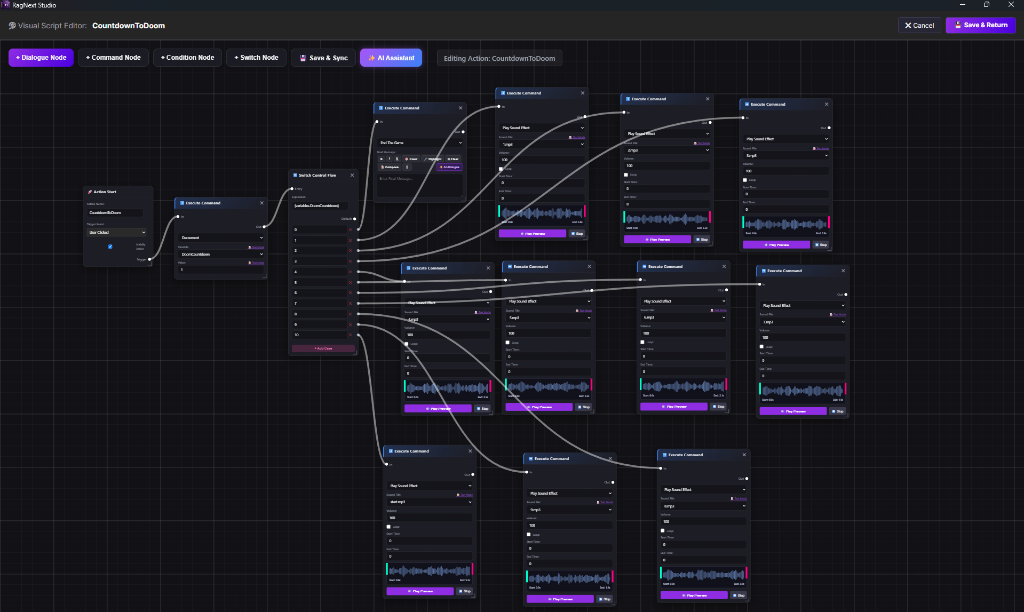
Evaluates a target expression (like variables.DoomCountdown) and matches it against multiple customizable cases (multi-way branching) to route control flow dynamically.
Trigger Events
An Action's execution is initiated by a Trigger Event. You define this on the Action Start node:
| Trigger Event | Description |
|---|---|
| OnGameStart | Runs once when a new game session begins (e.g., character select prompts). |
| OnPlayerEnter | Runs immediately when the player enters the host room. |
| OnPlayerExit | Runs when the player leaves the host room. |
| UserClicked | Appears as an interactive action button (e.g., "Talk To", "Examine", "Open Door") in the player UI when the host room or character is active. |
AI-Assisted Scripting
Inside the Visual Script Editor, you can use the ✨ AI Assistant button.
- Click the button and type a natural language prompt (e.g., "If player has key, unlock the north exit of Milestone 42, else display 'It's locked'").
- The AI compiles the instructions and automatically connects the corresponding Condition, Display Text, and Unlock Exit nodes on your canvas.
🎨 Graph Canvas Controls
The visual graph canvas supports standard productivity features to manage large node configurations easily:
1. Multi-Selection & Moving Groups
- How to Select: Hold
Ctrl(orCmdon Mac) and drag a selection box over the nodes you want to capture. Selected nodes will highlight with a border. - How to Move: Click and drag any selected node. The entire group of selected nodes will move together, preserving their links and relative layout.
2. Copy & Paste
- You can duplicate nodes or move sections across actions:
- Select the target nodes and press
Ctrl+Cto copy. - Move your mouse to a target area on the canvas and press
Ctrl+Vto paste.
- Select the target nodes and press
- pasted actions automatically generate clean, unique names (e.g. copying
"Wear"generates"Wear - Copy", then"Wear - Copy (2)") to prevent name clashes.